 TERRA
UNITY AUDIO TOOL · VERSION 0.2.0
Sound Requests
Set up audio events, mix channels and trace playback requests from one Unity window.
Unity 2022.3 or newer. The Asset Store package includes a Quick Start scene and demo audio. Sound Requests has no third-party package dependencies.
Sound Requests on the Unity Asset Store ↗
Quick Start
- Import the package and open
Assets/Terracat/SoundRequests/Samples/QuickStart/QuickStart.unity. - Open Tools → Sound Requests. Enter Play Mode and click Run Audio Check in the demo.
- The music starts. The first Spell Cast ducks the music and the second is suppressed by its cooldown.
- Open Live, select the suppressed request and choose Play fragment to hear the surrounding audio.
The demo also compares authored effects, a one-shot effect override and a dry spell. Switch between Exploration and Combat mixes. Apply Soft highs and click Restart music to hear the new EQ preset.
Set up your project
- Open Tools → Sound Requests, then Settings → Create Library to create and select a project library.
- In Library, add an event and assign an AudioClip to a variant, or select clips in the Project window and use Import clips. Numbered takes can become variants of one event.
- Give the event a key and select a mixer channel. Click Save.
- Call
SoundRequests.Playwith that key from C#, or assign the event to a Sound Emitter. The scene needs an enabled AudioListener.
The default library is loaded through a Resources SoundRequestsConfiguration asset. Use your own library and configuration when moving from the sample to a project.
Library
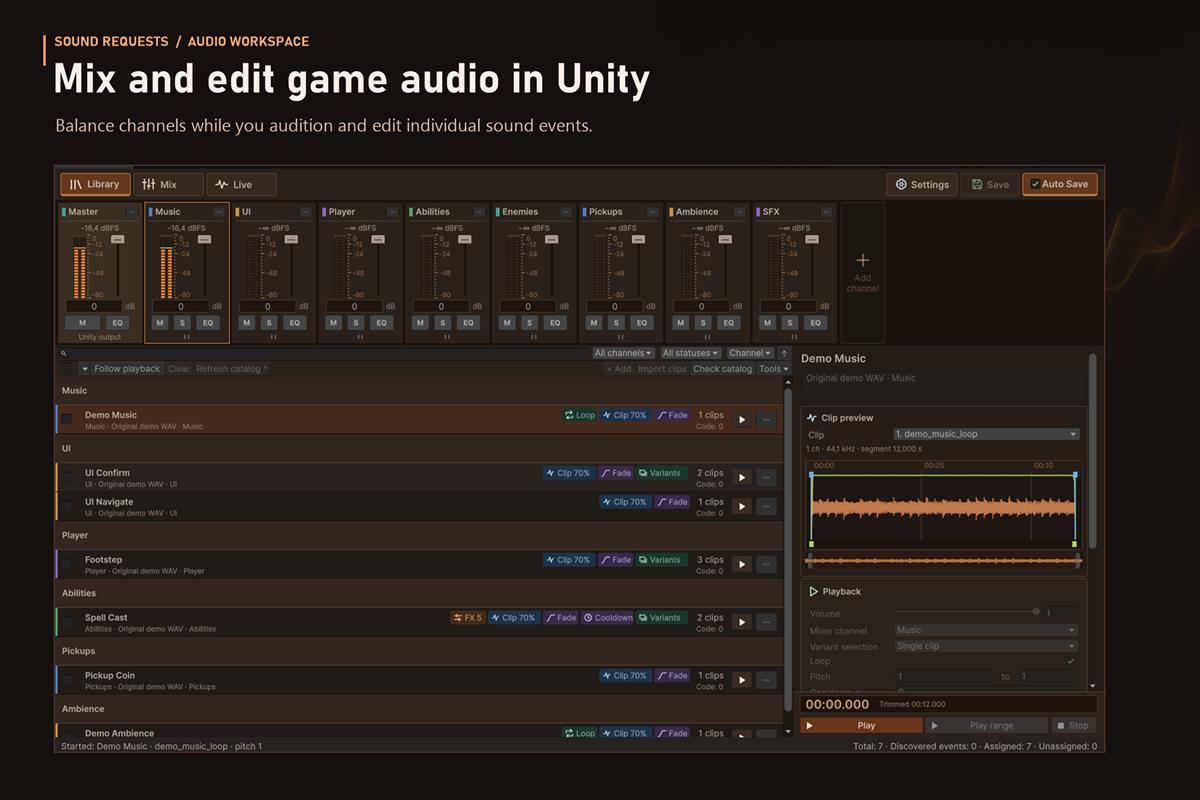
Select an event to preview its waveform and edit playback settings and variants. Use Clip to trim and fade, Loop seam to compare the current and suggested join before applying a trim, and Loudness to measure or match variants. Short measurements are marked LUFS*. The ceiling uses sample peaks.
In Effects, use + Add Effect and move stages up or down to change their processing order. The chain supports filters, echo, reverb, chorus, distortion, tremolo, compression, a sample-peak limiter, a noise gate and a de-esser.
Use Check catalog to find missing clips, invalid trims, duplicate keys and unresolved calls. Discovery scans supported explicit C# calls, prefabs and open scenes. Use Generate SoundIds after saving to create typed keys. Renamed events can keep their old keys as aliases.
Mixer and EQ
Library, Mix and Live share the mixer. Use the channel strips for gain, mute, solo and peak metering. In Mix → Presets capture or delete a mix and apply a saved preset in Play Mode. In Mix → Ducking choose the trigger channel and the channel to lower.
Click EQ on a channel or Master. Choose 3, 5, 8 or 12 bands and adjust frequency, gain and Q. The spectrum shows audio on that channel. Use the preset menu in Edit Mode to add or delete your own presets.
In Play Mode, new playback picks up clip, effect and EQ edits. Voices already playing keep their settings. Mixer faders still change active levels. Click Save to keep the edits, or Discard all to restore saved settings.
Live and replay
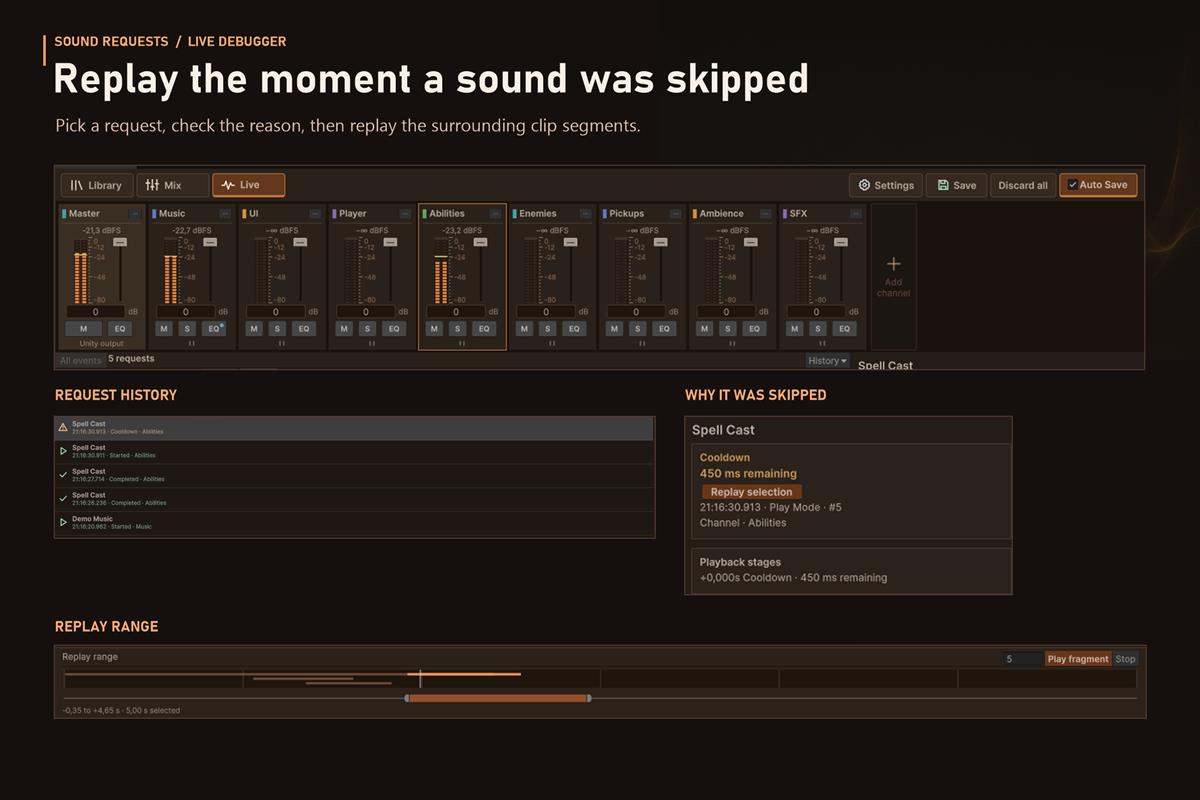
Live shows the outcome of each request and the reason for suppression. Use Issues to focus on failures, and turn off Follow to keep your place. The details can open the event, emitter or calling line when available.
Select a request, adjust the range from 0.1 to 15 seconds, and click Play fragment. Replay can run after you leave Play Mode in the same Editor session. It reconstructs overlapping clip segments from recorded offsets, pitch, initial gain and timing. The final game mix, live DSP, spatial movement and later automation are outside that recording.
C# examples
Call these examples from a method during Play Mode. Use event and channel names from your active library.
using Terracat.SoundRequests;

SoundHandle voice = SoundRequests.Play("Spell Cast");
SoundRequests.Music.Crossfade("Demo Music", 1.5f);

var effects = new SoundEffects
{
    LowPass = true,
    LowPassCutoff = 3200,
    Echo = true
};
effects.SetOrder(SoundEffectType.LowPass, SoundEffectType.Echo);
SoundRequests.Play("Spell Cast", new SoundPlayOptions().WithEffects(effects));

// Enable the preset before starting or restarting the music.
var music = SoundRequests.Channel("Music");
bool applied = music.TryApplyEqPreset("Soft highs");
WithEffects replaces the event chain for one playback. WithoutEventEffects() bypasses the event chain while retaining channel EQ. ClearEqOverride() on the same channel restores use of its library EQ for future playbacks. The package README covers playback handles, spatial playback, typed IDs and runtime lifecycle in more detail.
Troubleshooting
- Sound plays in Library but is silent in the game
- Editor audition bypasses the game’s cooldown, limits and spatial attenuation. Check the active library, the scene AudioListener and the request outcome in Live.
- EQ graph shows no spectrum
- Open EQ on the active channel or Master. The graph follows the signal routed to that strip.
- An effect or EQ edit sounds unchanged
- Start a new voice to hear the change. Event DSP and channel EQ are bypassed in WebGL players.
For help, email [email protected] with your Unity version, Sound Requests version, reproduction steps, and the Live outcome if relevant.